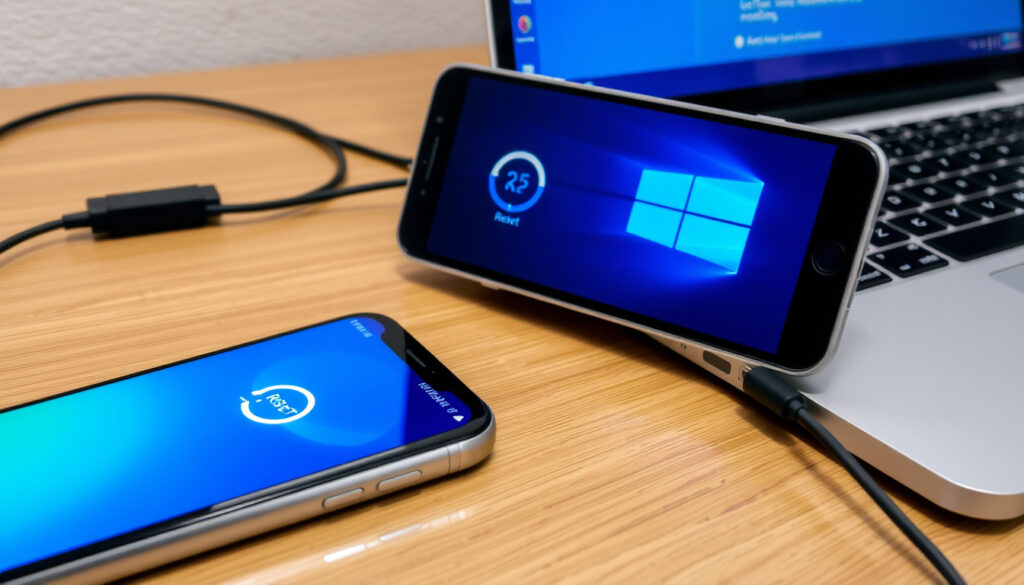
How to Reset Network Settings: Android, iPhone, Windows (Safe?)
Few things are as frustrating as a smartphone that refuses to connect to Wi‑Fi or a laptop that keeps dropping Bluetooth. Before you blame the hardware, there’s a simple reset that often fixes the issue — and it doesn’t wipe your photos, contacts, or apps.
Personal data affected: None (contacts, photos, apps remain) ·
Wi‑Fi passwords erased: Yes ·
Bluetooth pairings erased: Yes ·
Time to complete on Android: Under 30 seconds ·
iPhone path depth: 4 taps (Settings > General > Transfer or Reset > Reset Network Settings)
Quick snapshot
- Network reset erases all saved Wi‑Fi networks and passwords (Apple Support)
- Does not delete personal files, photos, or apps (Apple Support)
- Factory reset is different and wipes all data (Apple Support)
- Whether network reset resolves all connectivity issues — depends on root cause (Google Android Help)
- Entire reset process takes less than 30 seconds on most devices (Croma Unboxed)
- Reboot is required (automatic on some models) (NCSSM ITS Wiki)
- After reset, reconnect to Wi‑Fi and re-pair Bluetooth devices (Android 101 guide)
- If problems persist, check SIM card or carrier settings update (Apple Support)
Four key facts to remember about what a network reset changes — and what it leaves alone.
| Attribute | Effect |
|---|---|
| What network reset does | Clears saved Wi‑Fi networks, Bluetooth pairings, and VPN settings |
| What it does not affect | Personal data, apps, photos, contacts, or system files |
| Typical time to complete | Less than 30 seconds on most devices |
| Reboot required | Yes (automatic on some devices) |
How do I reset my network settings?
Every major platform has a different menu path, but the goal is the same: wipe network caches and saved credentials to force fresh connections. The exact wording varies by manufacturer and OS version, but the outcome is consistent across Android, iPhone, and Windows.
Resetting on Android (stock)
- Open Settings > System > Advanced > Reset options
- Tap Reset Wi‑Fi, mobile & Bluetooth > confirm with RESET SETTINGS (Google Android Help)
The implication: stock Android makes it easy, but the option is buried under Advanced. On Android 8.0+, the path may be shorter via Settings > Network & Internet then the three-dot menu (NCSSM ITS Wiki).
Resetting on Samsung
- Settings > General Management > Reset > Reset network settings
- Tap Reset Settings to confirm (Croma Unboxed)
Resetting on OnePlus
- Settings > System > Reset options > Reset Wi‑Fi, mobile & Bluetooth
- Confirm the action (NCSSM ITS Wiki)
Resetting on iPhone
- Settings > General > Transfer or Reset iPhone > Reset > Reset Network Settings
- Enter your passcode when prompted (Apple Support)
The trade-off: Apple’s reset also resets the device name to “iPhone” and changes manually trusted certificates to untrusted (Apple Support).
Resetting on Windows 10 and 11
- Windows 10: Settings > Network & Internet > Status > Network reset (Microsoft Support)
- Windows 11: Settings > Network & Internet > Advanced network settings > Network reset
On all platforms, the reset takes less than a minute. The real cost is re-entering Wi‑Fi passwords and re-pairing Bluetooth gear — not losing data.
Is it safe to reset your network settings?
Resetting network settings is safe and does not harm hardware or system files. It only clears network-related configurations: Wi‑Fi passwords, Bluetooth pairings, and VPN settings. Personal data like photos, contacts, and apps remain untouched (Apple Support).
Why this matters: many users avoid the reset because they fear data loss. In reality, the risk is limited to losing saved network credentials — not your photos or documents.
Will I lose anything if I reset my network settings?
Resetting network settings removes saved Wi‑Fi networks, Bluetooth devices, and VPN configurations. It does not delete personal files, app data, or accounts (Android 101 guide). Factory reset, by contrast, erases all data and restores the phone to factory state (Apple Support).
The pattern: network reset is a scalpel; factory reset is a sledgehammer. Use the former for persistent connection issues, the latter only when selling or troubleshooting deep problems.
How do I restart network settings on Android?
When to use network reset on Android
- Wi‑Fi won’t connect even after forgetting and re-entering the password
- Bluetooth devices are stuck on pairing
- Mobile data stops working after an OS update
Step-by-step for stock Android
- Settings > System > Advanced > Reset options > Reset Wi‑Fi, mobile & Bluetooth > Confirm (Google Android Help)
- If you can’t find the option, search Settings for “network settings” (Android 101 guide)
Samsung One UI variation
- Settings > General Management > Reset > Reset network settings > Reset Settings (Croma Unboxed)
OnePlus OxygenOS variation
- Settings > System > Reset options > Reset Wi‑Fi, mobile & Bluetooth (NCSSM ITS Wiki)
The catch: on older Android versions the menu path changes — Android 6.0 uses Backup & reset, Android 7.0 uses More, and Android 8.0+ uses Network & Internet (NCSSM ITS Wiki). Always search for “network” in Settings if the path doesn’t match.
How do I fix my phone network connection?
Before resetting — basic checks
- Toggle Airplane Mode on and off
- Restart the device
- Forget and reconnect to the Wi‑Fi network
Using network reset as a fix
If basic checks fail, a network reset is recommended by manufacturers when persistent connection issues occur (Google Android Help). It often resolves software-level conflicts without deeper intervention.
Advanced steps if reset fails
If problems continue after reset, consider SIM card issues or a carrier settings update (Apple Support). In rare cases, a factory reset or contacting your carrier may be necessary.
A network reset is a quick fix for software glitches, but it won’t help if the problem is a faulty SIM card, carrier outage, or hardware failure. For those cases, a carrier settings update or physical SIM replacement is the next step.
“Go to Settings > System > Advanced > Reset options. Touch Reset Wi‑Fi, mobile & Bluetooth (Network settings reset) > RESET SETTINGS.”
— Motorola support page (Google Android Help references similar path)
“On your Mac, choose Apple menu > System Settings, then click Wi‑Fi in the sidebar.”
— Apple support documentation (Apple Support)
For Android users who still face issues after the reset, the evidence suggests that a deeper network diagnostic (such as checking APN settings or updating carrier firmware) may be required. The reset is a first-aid tool, not a cure-all.
For iPhone users specifically, the steps differ slightly from Android and Windows — you can read more about resetting network settings on iPhone in our dedicated guide.
Frequently asked questions
Can I undo a network settings reset?
No. Once performed, there is no undo button. You must manually re‑enter Wi‑Fi passwords and re‑pair Bluetooth devices. Apple recommends backing up your iPhone before resetting if you want to preserve settings for later restoration (Apple Support).
Does network reset affect my phone number or carrier service?
No. Your phone number, carrier service, and IMEI are unaffected. Only network configuration data (Wi‑Fi, Bluetooth, VPN) is cleared (Google Android Help).
What is the difference between network reset and factory reset?
Network reset only clears network-related settings (Wi‑Fi, Bluetooth, VPN). Factory reset erases all user data, apps, and settings, returning the device to its out‑of‑box state (Apple Support).
Will resetting network settings fix my Bluetooth issues?
Yes, if the issue is caused by corrupted Bluetooth pairing data. After reset, all previous pairings are removed, and you can pair devices again from scratch (Android 101 guide).
Should I reset network settings if I suspect my phone has been hacked?
Network reset can remove suspicious VPN or proxy configurations that a hacker might have installed, but it does not remove malware or compromised accounts. For security concerns, a full factory reset is more appropriate (Apple Support).
How often should I reset my network settings?
Only when you experience persistent connectivity problems. Routine resetting is unnecessary and only wastes time re‑entering credentials (Croma Unboxed).
Does a network reset improve internet speed?
Indirectly, yes — if the issue was caused by a corrupt DHCP lease or DNS cache. By forcing a fresh connection, the device may obtain a better IP lease, which can improve speed. However, it does not boost your broadband plan’s bandwidth (NCSSM ITS Wiki).
What should I do after resetting network settings?
Reconnect to your Wi‑Fi network (enter the password), re‑pair Bluetooth devices, and re‑configure any VPN or APN settings you need. On iPhone, you may also need to re‑verify trusted certificates (Apple Support).
Related reading
For anyone wrestling with a stubborn connectivity problem, the network reset is the single most effective troubleshooting step that doesn’t risk your data. It’s free, it’s fast, and the only thing you sacrifice is the convenience of remembered Wi‑Fi passwords and Bluetooth pairings.
More related posts
 UOB Lady’s Savings Account: Rates, Rewards & Fees 2025
 When is Children’s Day? Dates in Ireland & Worldwide
 Macclesfield vs Crystal Palace Lineups: FA Cup Shock 2026
 Zone of Proximal Development – Vygotsky’s Theory Explained
 Home Team Career Centre fire: 20 evacuated, 1 hospitalized
 How Many Oceans in the World? 5 vs 7 Explained by NOAA
 0700 HK Share Price: Tencent Stock Analysis & Forecast
 Bergema Sampai Selamanya Lirik: Translation, Meaning, and Lyrics