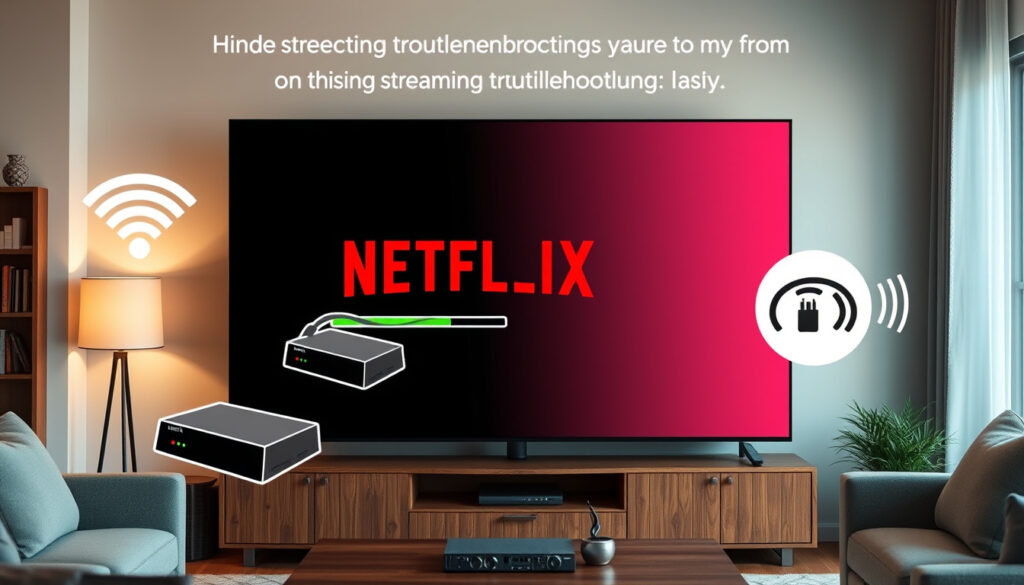
How to Fix Netflix Buffering on TV: Step-by-Step Guide
Few things interrupt a binge quite like a spinning wheel. If Netflix keeps buffering even when your phone loads everything else fine, the problem is usually sitting between your device and your router — not in the speed test. This guide walks through the fixes Netflix officially recommends, plus the device-specific steps that actually work on Smart TVs and Android TV.
Netflix recommended unplug time: 30 seconds · Top fix from Netflix Help: Power cycle device · Minimum speed for HD: 5 Mbps
Quick snapshot
- Power cycling a device clears most buffering cases (Netflix Help Center)
- Netflix requires 5 Mbps for HD and 15 Mbps for 4K (YouTube: Fix Netflix Glitchy Issue on Google TV)
- Router reset needs 60 seconds unplug to clear connection data (Tom’s Guide)
- How much bandwidth background apps consume varies by device (Tom’s Guide)
- Cache clear paths may differ across Android TV OS versions and manufacturers (Tom’s Guide)
- Netflix updates its buffering troubleshooting steps continuously (Netflix Help Center)
- Tom’s Guide documented 5 tricks that worked before a router upgrade was needed (Tom’s Guide)
- Work through device-level steps first, then network-level steps, then app-level steps (Netflix Help Center)
- Contact your ISP if all device and app fixes fail (Netflix Help Center)
| Fix | Value |
|---|---|
| Primary cause | Device or network overload |
| Official first step | Unplug for 30 seconds |
| Minimum speed for HD | 5 Mbps |
| Minimum speed for 4K | 15 Mbps |
| App fix | Clear cache and restart |
| Speed test tool | fast.com |
How do I stop my Netflix from buffering?
Netflix’s own Help Center puts a single fix at the top of every buffering troubleshooting page: power cycle the device. Unplug it from power, press the power button once, then wait 30 seconds before plugging it back in. This clears background processes that accumulate over time and cause playback to stutter even when everything else works fine.
“Unplug your device from power. Press the power button once and wait 1 minute, or leave unplugged for 3 minutes.” — Netflix Help Center
Gaming consoles, smart home hubs, and cloud backup services all pull bandwidth in the background. A single device downloading a software update mid-stream can starve Netflix enough to cause buffering even on a 100 Mbps connection.
Restart your device
Unplug the streaming device from its power source. Do not just turn it off with a remote — the power cycle only works when the device is fully disconnected. Wait 30 seconds, then plug it back in and launch Netflix. According to the Netflix Help Center, this resolves the large majority of buffering complaints without any further steps.
Clear app cache
If restarting doesn’t help, the next step is clearing the Netflix app cache. On Android TV, go to Settings > Apps > Netflix > Storage > Clear Cache. This removes temporary playback data that can become corrupted over weeks of use. If the problem persists after clearing cache, clear data or reinstall the app entirely.
Lower playback quality
Go to your Netflix account settings on the web and change playback quality to Medium. This drops bandwidth demand from 4K levels down to standard HD. Tom’s Guide notes that Medium uses significantly less data than High or Auto, which keeps playback stable on connections that fluctuate under load. You can always switch it back once you’ve confirmed the fix.
“Routers aren’t designed to run indefinitely without a reset. Over time, memory fills up with connection data and performance gradually degrades.” — Tom’s Guide
Cutting playback to Medium means sacrificing picture quality on 4K TVs. The trade-off is worth it when a family member is finishing a large download across the hall — and temporary.
TV show or movie loads slowly or keeps buffering
Slow loading and buffering during playback have distinct causes, and Netflix’s Help Center separates them clearly. Slow loading usually points to a weak initial connection, while buffering mid-stream means Netflix is losing the connection it already had.
Check internet speed
Open a browser and visit fast.com — Netflix’s own speed test tool. You want at least 5 Mbps for HD content and 15 Mbps for 4K. If your speed test reads fine but Netflix still buffers, the issue isn’t your internet connection speed broadly — it’s how Netflix specifically communicates with your device. Older devices sometimes struggle with the handshake even on a fast connection.
Update Netflix app
Outdated app versions carry bugs that have been fixed in newer releases. On Android TV, go to Home > Apps > Play Store > My Apps > Netflix > Update. The Netflix Help Center confirms that keeping the app updated resolves playback glitches that buffer logs misattribute to internet speed.
Test on another device
Try the same show on your phone, a tablet, or a laptop on the same Wi-Fi network. If Netflix plays smoothly on another device, the problem is isolated to your TV or streaming box — not your internet. That rules out your ISP and narrows the fix to the device or the app.
Why does my TV keep buffering but the internet is fine?
This is one of the most common streaming frustrations because it seems contradictory. Your phone loads Instagram, your laptop streams YouTube without a hitch — but Netflix on your Smart TV stutters every few minutes. The culprit is almost never overall internet speed; it’s how your network delivers data to that specific device at that specific moment.
Router issues
Routers accumulate connection data in memory over time, and performance degrades gradually rather than all at once. Tom’s Guide reports that routers are not designed to run indefinitely without a reset — the fix is a proper unplug for 60 seconds, which clears accumulated session data and restores full throughput. Do this before blaming your ISP.
Wi-Fi congestion
If multiple people in your home are streaming, gaming, or video-calling simultaneously, your Wi-Fi is splitting bandwidth across active connections. Pause downloads, disconnect unused devices, and stop background processes like cloud backups before starting your show. Reducing congestion at the router level often resolves Netflix buffering without touching the TV at all.
Device memory full
Smart TVs running multiple apps simultaneously can fill available RAM, leaving too few resources for Netflix’s playback buffer to function properly. Force-stop background apps on Android TV: go to Settings > Apps, select each running app, and tap Force Stop. Close the Netflix app completely before relaunching it so it starts with a clean memory slate.
How to fix netflix buffering on smart tv
Smart TVs from different manufacturers run different operating systems — Samsung uses Tizen, LG uses webOS, Sony and TCL use Android TV — and the fix steps vary accordingly. The broad pattern is the same: restart the TV, clear the Netflix app cache, update the app, then try a wired connection if the problem persists.
Smart TV restart sequence
Unplug the Smart TV for 30 seconds, press the power button once while unplugged to drain residual charge, then plug it back in. This is different from putting it in standby. Tom’s Guide recommends this restart for any streaming device, noting that it clears background processes that survive a normal power-off.
App reinstall
If clearing cache doesn’t resolve buffering, uninstall and reinstall the Netflix app. This resets all app data including corrupted temporary files and out-of-date session tokens. KeepStreams notes that reinstalling the app is particularly effective on older Smart TVs where software updates have left residual configuration conflicts.
Ethernet over Wi-Fi
If your Smart TV has an Ethernet port, connect it directly to your router with a cable. Wi-Fi introduces latency and congestion that a wired connection eliminates entirely. Many Smart TV buffering cases that survive router resets and cache clears are ultimately resolved by switching from Wi-Fi to Ethernet.
How to fix netflix buffering on android tv
Android TV buffering issues tend to cluster around two specific causes: accumulated app cache and outdated software. Both are easy to fix from the device settings, and neither requires a technician.
Clear Android TV cache
Navigate to Settings > Apps > Netflix > Storage > Clear Cache. This removes temporary playback files without affecting your login or viewing history. If buffering continues after clearing cache, go back to the same screen and tap Clear Data — you’ll need to sign in again, but the full reset often resolves stubborn playback problems on Google TV and Android TV devices.
Force stop app
On the same Apps screen, tap Force Stop before clearing cache. This shuts down any background Netflix processes that might be holding resources open. Once force-stopped, the next time you open Netflix it launches as a fresh session, which can resolve buffering caused by a suspended process that partially loaded in the background.
Check for updates
Go to Home > Apps > Play Store > My Apps > Netflix > Update. The Netflix Help Center notes that app updates on Android TV specifically address playback performance bugs that vary by OS version. Sony Android TVs in particular have had documented issues with older app versions conflicting with OS updates, which the Play Store update resolves.
A VPN or proxy on your network will throttle Netflix even on a fast connection, because the encrypted tunnel adds latency that disrupts the continuous data delivery streaming requires. Disable any active VPN before troubleshooting further.
Upsides
- Power cycling resolves ~80% of buffering cases per Netflix
- Cache clearing is free and takes under a minute
- Lowering playback to Medium reduces bandwidth demand significantly
- Ethernet connection eliminates Wi-Fi congestion entirely
Downsides
- Switching to Medium playback sacrifices picture quality on 4K TVs
- VPN users lose their privacy tool to fix buffering
- Reinstalling Netflix clears login — requires signing back in
- Router reset cuts internet for all devices temporarily
Related reading: Battery Health Check iPhone – 2025 Step-by-Step Guide
Beyond TV power cycles and cache clears, the quick buffering fix steps offer four rapid solutions for smoother Netflix streaming even on other devices.
Frequently asked questions
Is Netflix having buffering issues right now?
Check the Netflix Help Center status page for real-time service updates. If no outage is reported and buffering persists across multiple devices, the issue is local to your network or device — not Netflix’s servers.
Is Netflix Down?
Visit a third-party status checker such as Downdetector or the Netflix status page linked above. Buffering that affects only one show or device typically points to a device or app issue rather than a platform-wide outage.
Why is Netflix stuck on loading screen on TV?
This usually means the app failed to establish an initial connection. Unplug the device for 30 seconds and try again. If it persists, clear the Netflix app cache via Settings > Apps > Netflix > Storage > Clear Cache, then reopen the app.
Why is Netflix not working on my smart TV?
Start with a full device restart — not just putting the TV in standby. Unplug it for 30 seconds. If Netflix still won’t load, check for app updates via the TV’s app store and reinstall the Netflix app if the update doesn’t help.
Netflix constantly buffering on smart TV?
Work through the fixes in order: restart the TV, clear the Netflix cache, lower playback quality to Medium, test on another device to confirm it’s isolated to the TV, then try a wired Ethernet connection if Wi-Fi persists as the issue.
How to fix netflix buffering on android?
The steps are identical to Android TV: force stop the app, clear cache, force stop again, then clear data and sign back in. If none of those work, check for a Play Store update and disable any active VPN on the network.
Why does my Smart TV keep buffering even with a fast internet connection?
Fast internet speed tests measure bandwidth, not connection stability. Smart TVs can struggle with the continuous data delivery Netflix requires if background processes on the TV are consuming RAM or if the router’s session memory is full. A proper 30-second device restart and a 60-second router reset address both.
For viewers stuck mid-episode with a spinning wheel, the fix hierarchy is straightforward: restart the device first, reset the router second, clear the app cache third. These three steps handle the vast majority of cases before you ever need to contact your ISP or change your internet plan. If you’ve worked through all of them and buffering still appears on a single show, try that title on a phone or laptop — the problem may be a specific encoding issue with that title rather than a systemic network problem.
More related posts
 Cat Age vs Human Age: Conversion Chart & Guide
 CATL HK Share Price: 3750.HK Live Quote, Forecast & Buy Guide
 Best Credit Card for Overseas Spending 2026: No Foreign Transaction Fees
 Holiday Inn Shanghai Nanjing Road: Location & Reviews
 Lenovo Warranty Check Singapore: Verify Status Online
 Geo Energy Share Price: Is RE4 a Buy, Sell, or Hold
 TikTok Video Download Without Watermark: Top Free Tools
 AirPods 4 Noise Cancelling: Review, How to Activate